# Authentication
Use this guide to create application credentials in Geoscape Hub, send your Consumer Key, and configure authentication in the interactive tester.
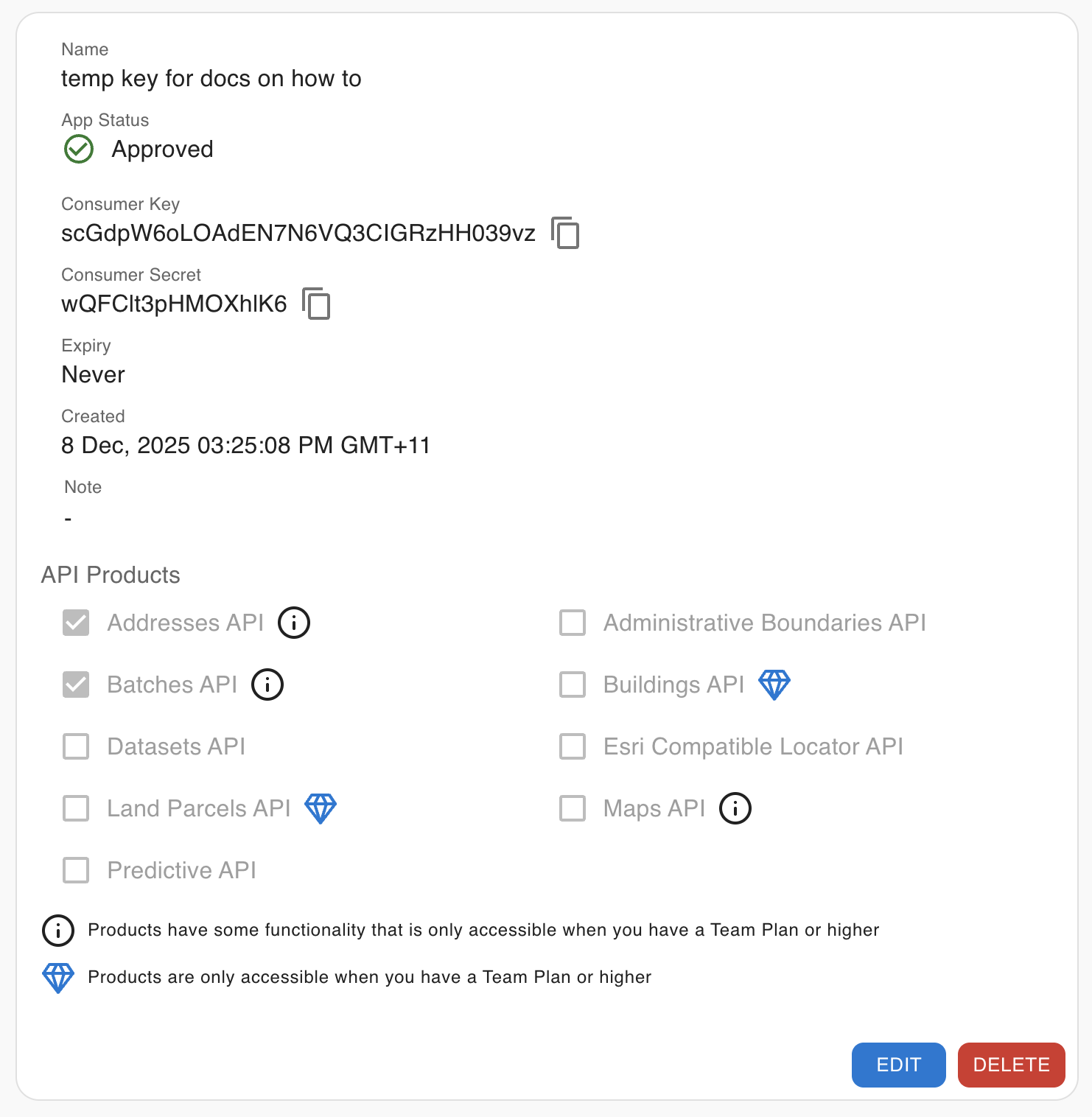
Geoscape APIs use an application credential created in [Geoscape Hub](https://hub.geoscape.com.au). Hub shows two values: a **Consumer Key** and a **Consumer Secret**.
| Hub value | What it is | Use in these API docs |
| --- | --- | --- |
| **Consumer Key** | The API key for your application. It authenticates the API calls documented here. | Send it in the `Authorization` header, or as the Maps API `key` query parameter. |
| **Consumer Secret** | A separate, confidential credential associated with your application. | It is not used by the REST endpoints in this API reference. Do not put it in an API request, URL, or browser application. |
Some Geoscape integrations may use a Consumer Secret in a separate flow. The REST APIs documented here use the Consumer Key. The Secret is not a substitute.
Keep the Consumer Secret confidential and never expose it in browser apps. Store the Consumer Key outside source code, such as in an environment variable or secrets manager.
## Authentication methods
The examples use `GEOSCAPE_API_KEY` to hold your application's Consumer Key. Set it in your terminal before running a request:
```shell
export GEOSCAPE_API_KEY="YOUR_CONSUMER_KEY"
```
Most APIs expect the header name `Authorization` and the Consumer Key as its value. Send the key directly, without a `Bearer` prefix:
```shell
curl "https://api.psma.com.au/v2/addresses/geocoder?address=1%20Swanston%20Street%20Melbourne%20VIC%203000" \
-H "Authorization: $GEOSCAPE_API_KEY" \
-H "Accept: application/geo+json"
```
The Maps API also supports a query parameter named `key`. This is useful when a mapping library cannot set request headers:
```shell
curl "https://api.psma.com.au/v1/maps/geoscape_v1/roads/12/3767/2458.pbf?key=$GEOSCAPE_API_KEY"
```
Use the authentication name shown on the endpoint you are calling. For Maps, the query parameter is `key`; it is not `api_key`.
## Create an API key
1. Sign in to [Geoscape Hub](https://hub.geoscape.com.au), or create an account and organisation.
2. Subscribe to a plan that includes the API products you need.
3. Open **Apps** and select **Create API Key**.
4. Give the application a name and select its API products.
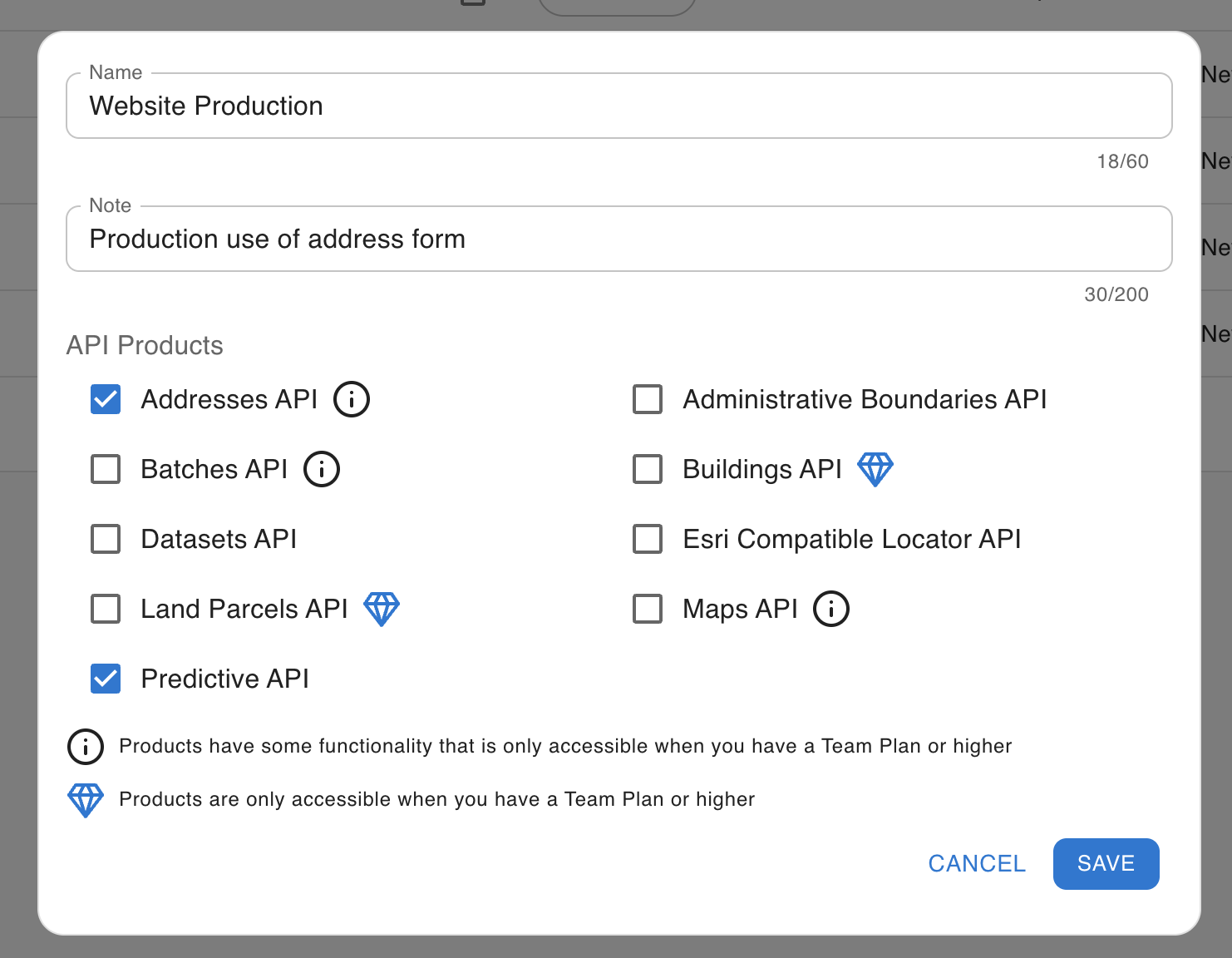 5. Save the application and copy the **Consumer Key** for API requests. Keep the **Consumer Secret** confidential. It is not used in the API request examples below.
 ## Interactive documentation
Open **Select authentication** in an endpoint’s request panel, then configure the API key:
- Header name: `Authorization`
- Header value: your application’s **Consumer Key**, without a `Bearer` prefix
- Leave the Consumer Secret out of the request
The tester stores credentials in session storage for the browser tab. Closing the tab clears them. Query parameters that support multiple values provide multiple selections where an enum is available. For free-text multi-value fields, enter the documented comma-separated value.
## Next steps
- [Try the Addresses API quickstart](/guides/addresses/quickstart)
- [Explore code examples](/guides/code-examples)
- [Handle errors](/guides/errors)
## Interactive documentation
Open **Select authentication** in an endpoint’s request panel, then configure the API key:
- Header name: `Authorization`
- Header value: your application’s **Consumer Key**, without a `Bearer` prefix
- Leave the Consumer Secret out of the request
The tester stores credentials in session storage for the browser tab. Closing the tab clears them. Query parameters that support multiple values provide multiple selections where an enum is available. For free-text multi-value fields, enter the documented comma-separated value.
## Next steps
- [Try the Addresses API quickstart](/guides/addresses/quickstart)
- [Explore code examples](/guides/code-examples)
- [Handle errors](/guides/errors)